Audio
When it comes to creating great videos and (live) streams, it’s easy to focus on visuals — the lighting, the camera angles, the post-processing — but don’t forget that audio quality is just as important as what’s on screen! Viewers will often forgive a slightly blurry shot, but poor sound can make them click away in seconds. Clear, balanced audio draws people in, helps your message shine, and gives your content that polished, professional feel. Investing time in good sound will make your streams more engaging and enjoyable to watch (and listen to!).
Add audio to your streams
Section titled “Add audio to your streams”To add music to your webcam’s stream, you need to navigate to the webcams page and select the webcam you want to add music to. On the edit page you you need to select the audio tab where you can set the preferred audio source. On the basic tier we offer you some radios with royalty-free music so you can get started right away. To create your own music radios for your webcams you will need to upgrade your plans.
Create your own music radios
Section titled “Create your own music radios”If you want to further customize your webcam’s audio, you can create your own radios. When creating your own radio, you need to watch out for some limitations of the streaming platforms:
- The used codec is important: Big streaming platforms like YouTube or Facebook only support AAC-LC. So it is important to choose this format otherwise your streams will not work.
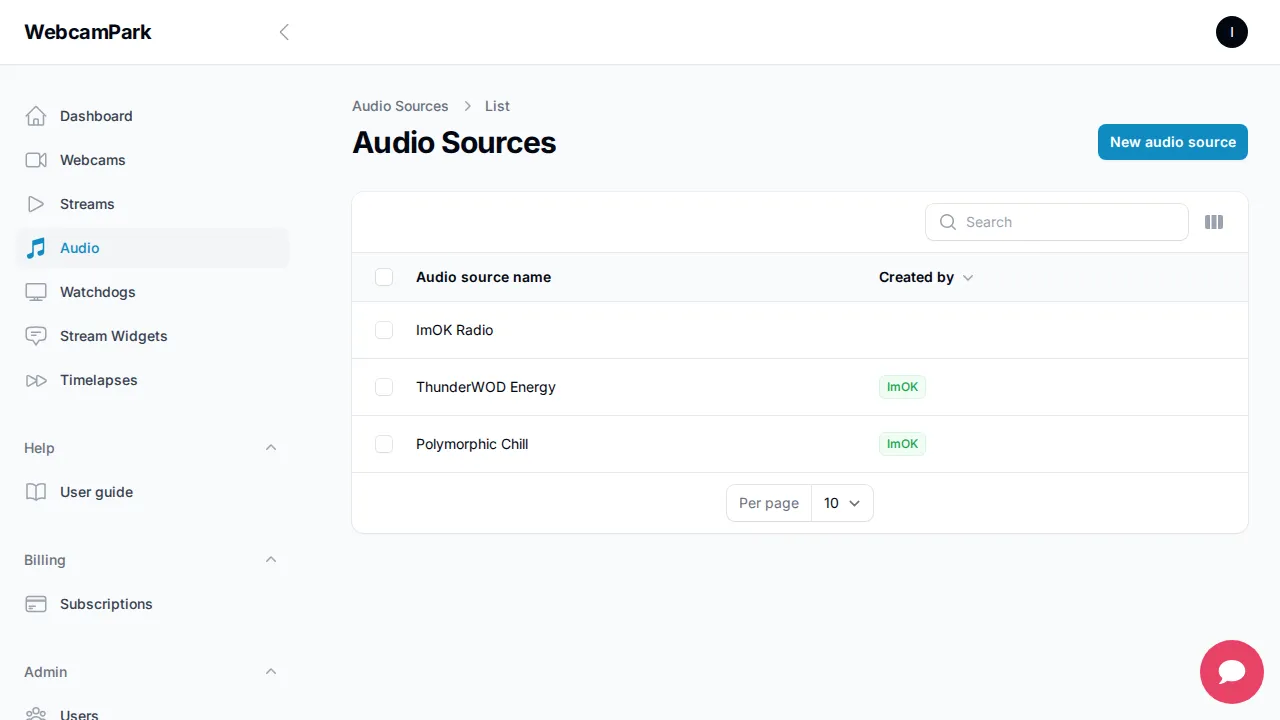
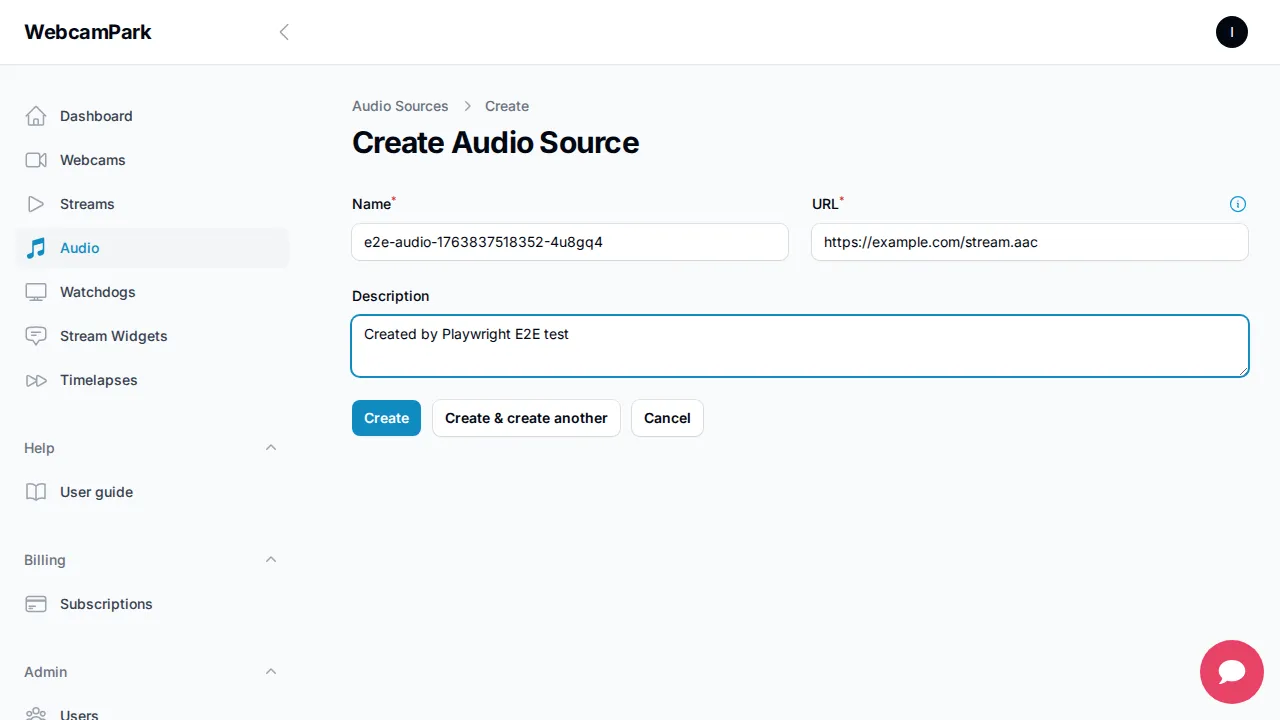
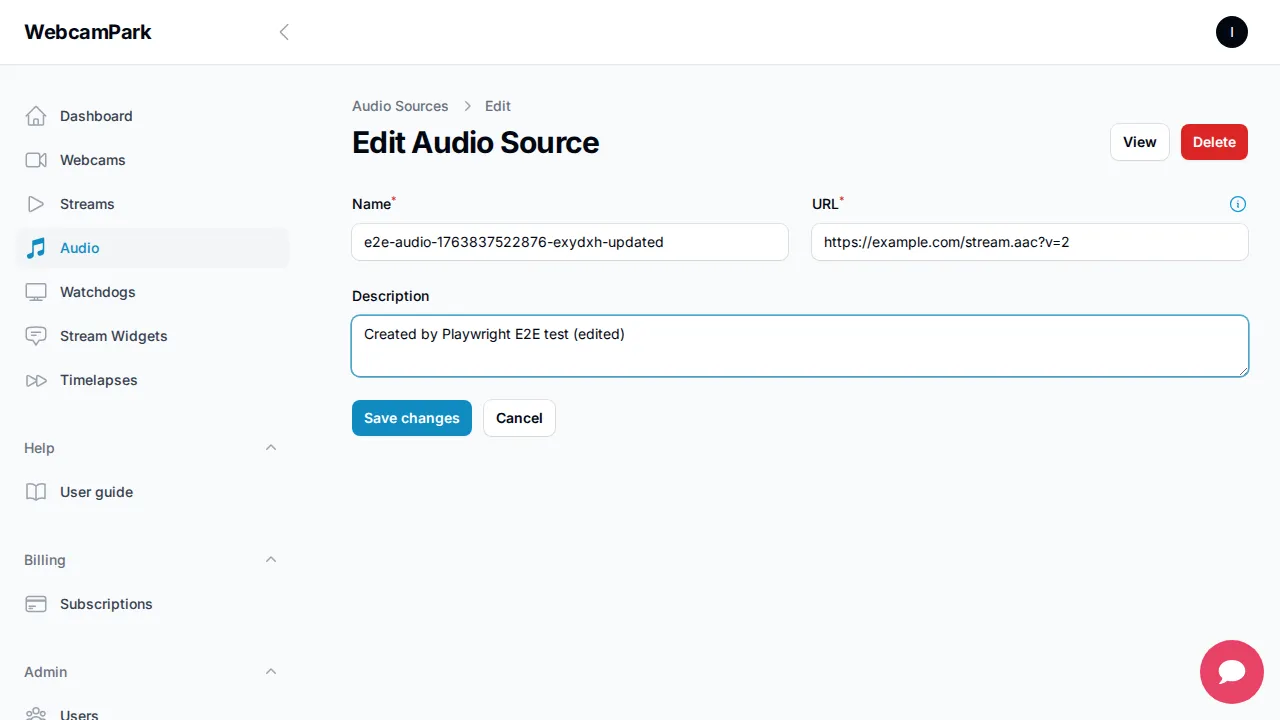
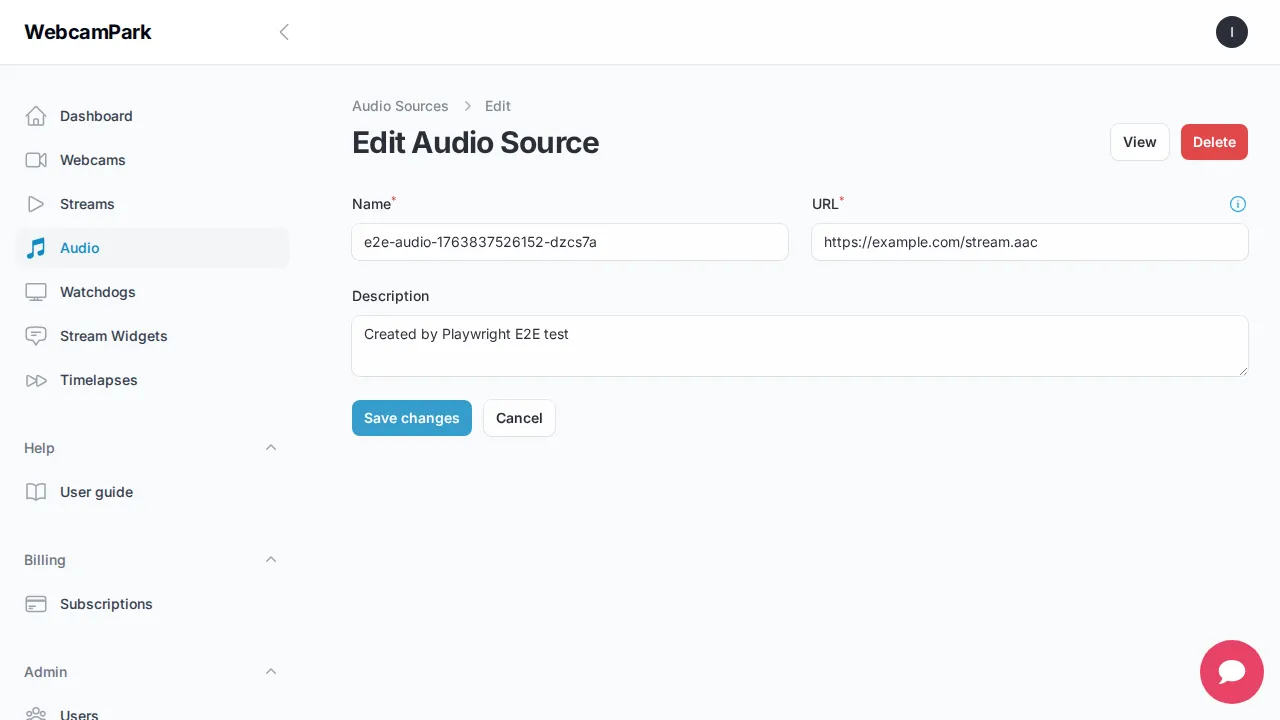
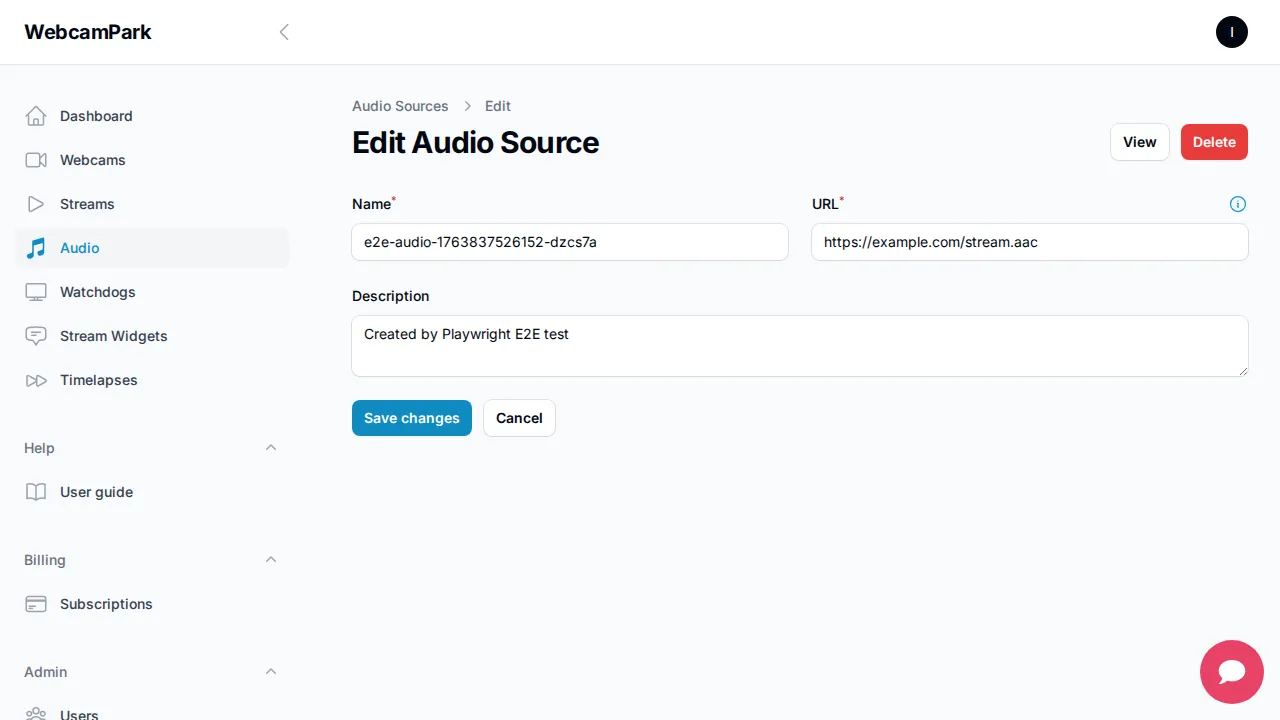
Add your own music rado to our platform you only need to navigate to the Audio section and click on the New audio source button and fill out the form.